Module Pool
Module Pools are kind of programs that are used for more complex screens (not just simple form and ALV display).
TLDR, use executable programs when your requirements is simple and only require defined display view like ALV. However, when custom views are needed with custom logic and complex navigation (multiple views/pages) Module Pools are used.
I'm not 100% sure what exactly the difference between executable programs and module pools, so take what said above with care.
You can read more about programs here
Creating Module Pool
Similar to creating z_programs, navigate to Transaction SE38 and perform the following.
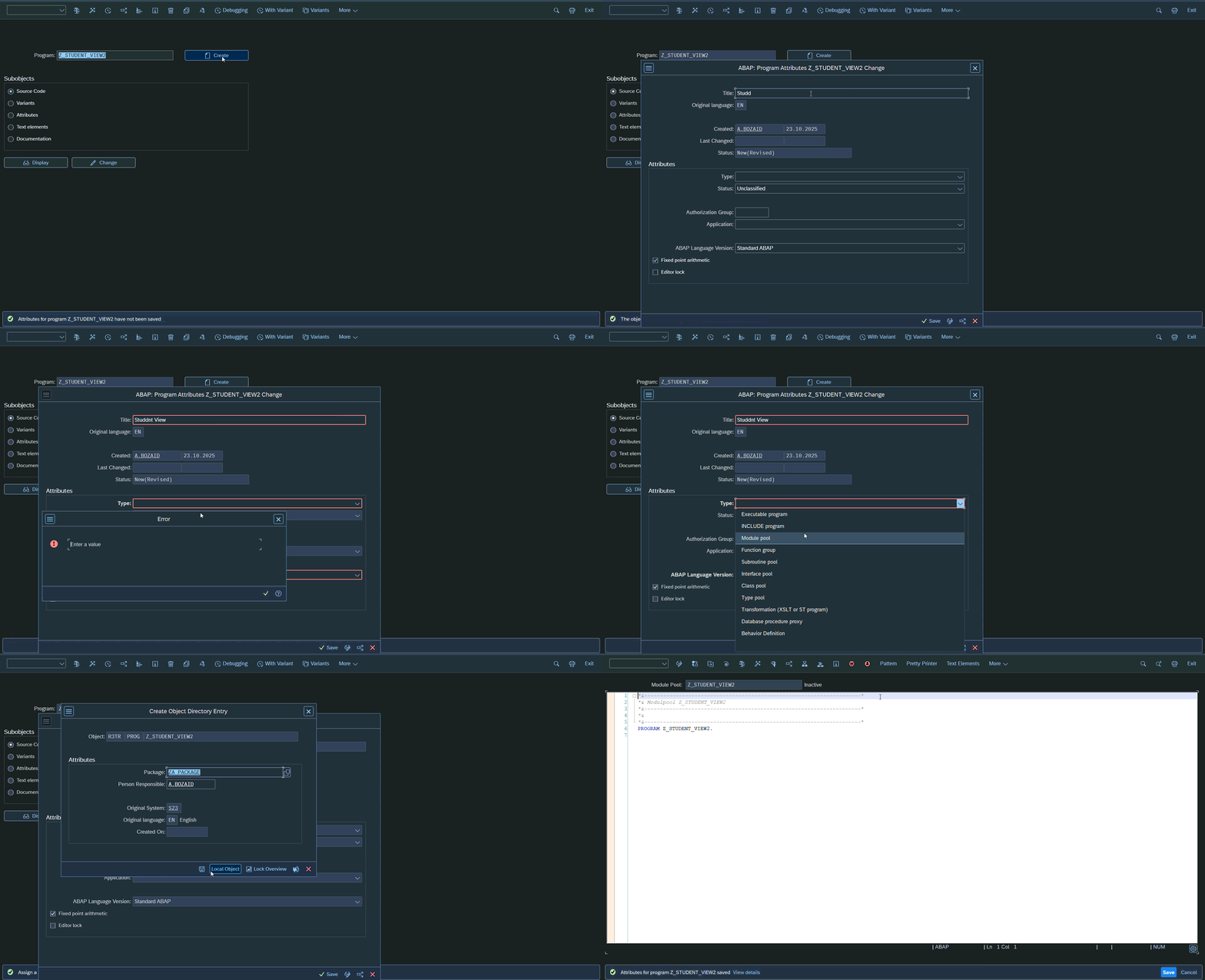
Creating Screens
You can create a screen within the module pool using the Display Object List  Buttons or using the shortcut CTRL+SHIFT+F5
It will display a hierarchical Tree of your program objects.
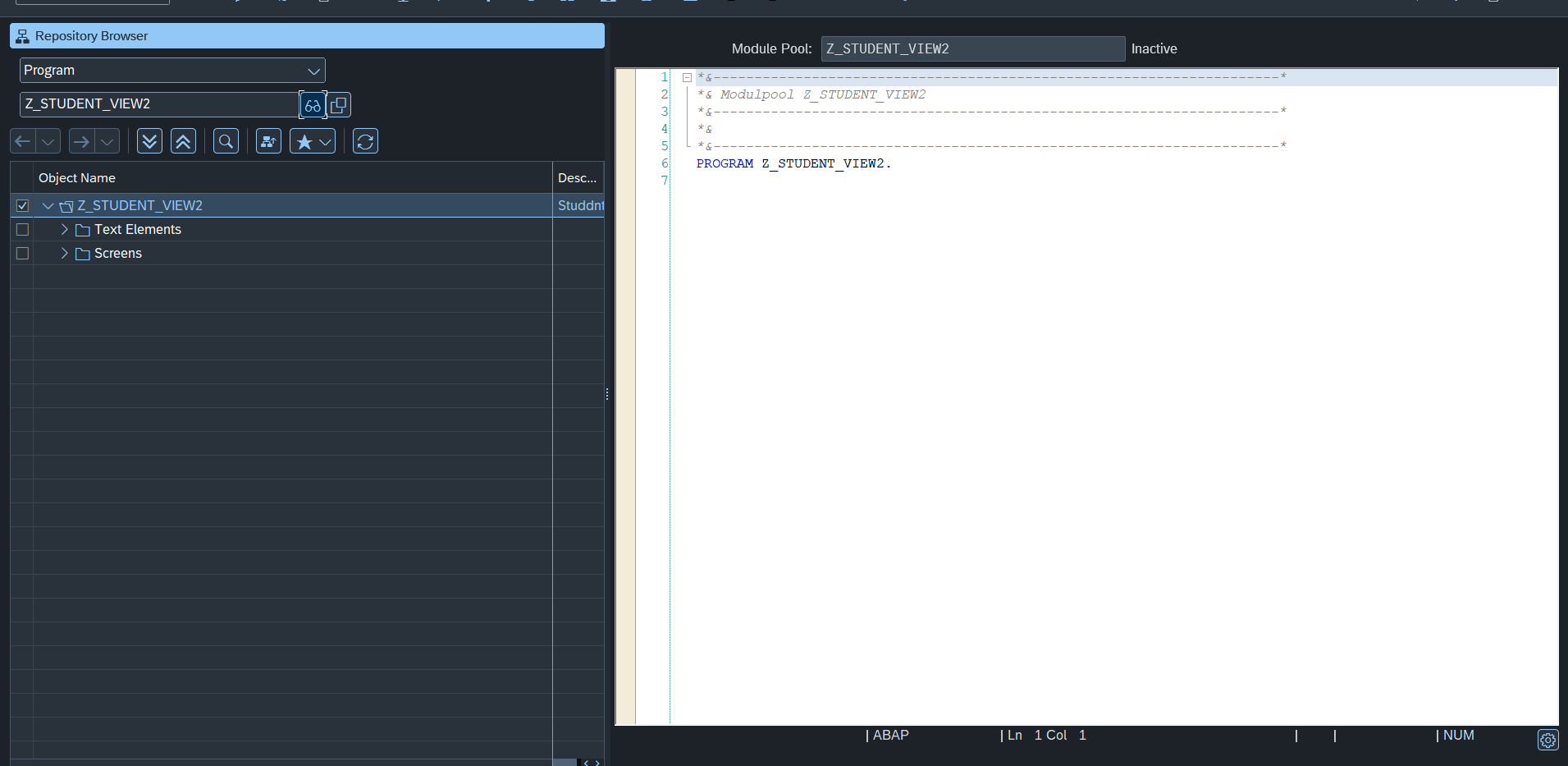
From here follow the following to create a screen.
- Right Click on the Module Name
- Hover over Create, then click screens.
- number your screen (integer ex. 2).
- add show description for the screen and click save.

Screen Code
When double clicking the screen from the objects view, you can access the screen code.
Within the screen you will see
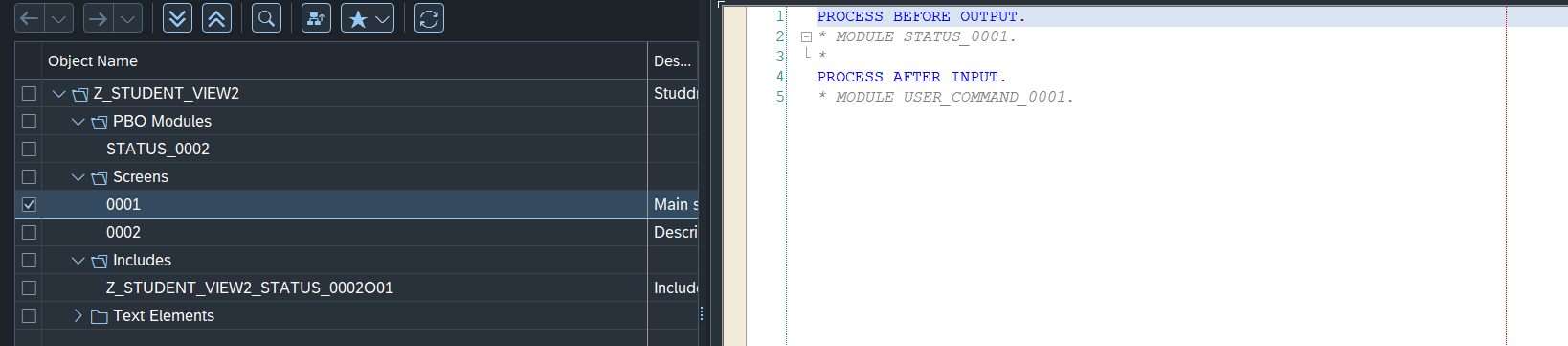
Process Before Output (PBO) and Process After Input (PAI). Both of them has a commented module. You can uncomment the module and double click on the module name to create it. These module are not created unless you do so.
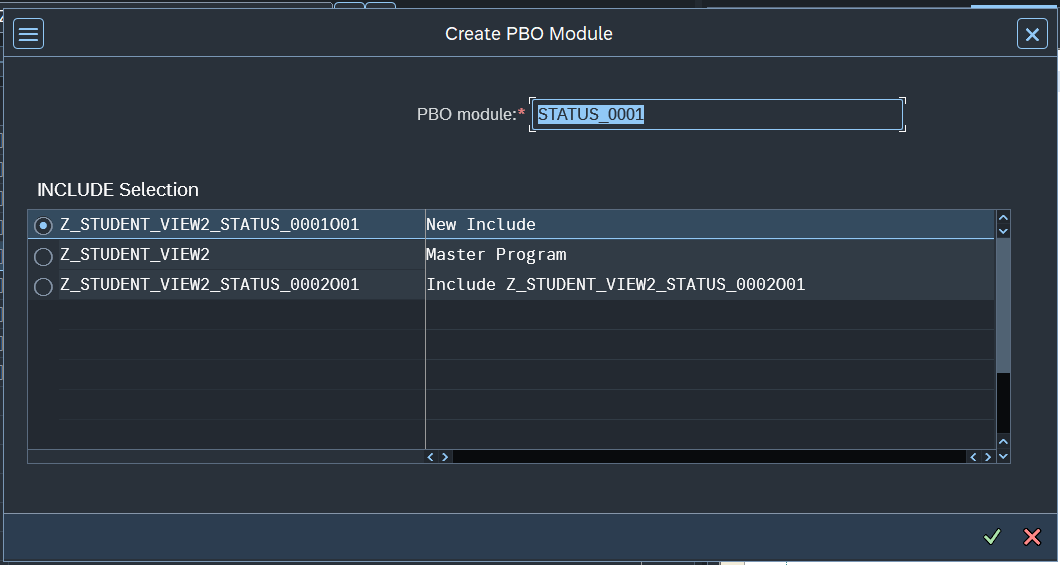
most of the time you want to create it as a new include.
Now you can write the code you want to execute.

Difference between PBO & PAI
Process Before Output the code inside the STATUS_0001 or whatever you called it will be executed before the screen becomes visible to the user. For example if you want to set the screen view or fetch data before the screen appear, you can do it here.
Process After Input the code inside the USER_COMMAND_0001 or whatever you called it will be executed after each input from the user. Here you can add your logic. For example if the user click the a certain button in the view/screen, you can handle it here. We will see how to write a statement that handle the flow.
PBO & PAI
Most of if not all of the screen logic and state management will happen within the code of the modules you created for them (status and user_command modules).
Adding inputs within the screen
Screen has inputs fields and have things to display the data on. We will see here how to add inputs within the screen.

Explaining Input/output elements parameters
There are important parameters for each element
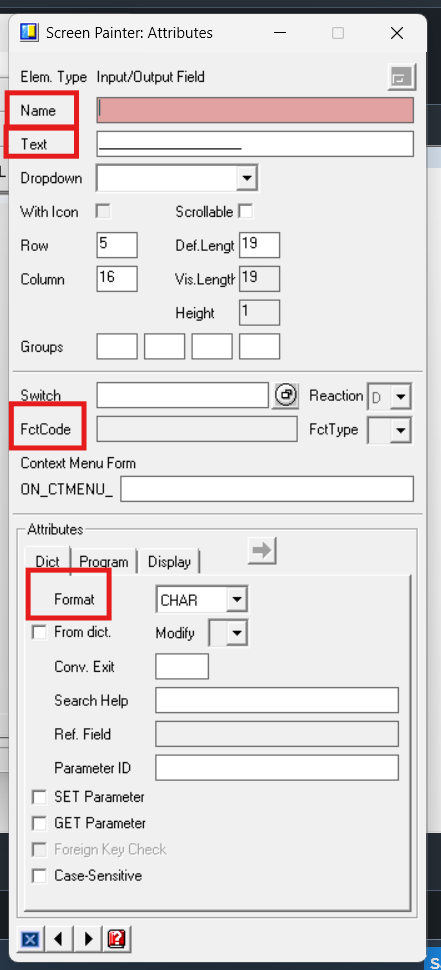
- Name: This is the reference name that we can use inside our code.
- Text: This is the element text/label. ex. can be Student Name.
- FctCode: This is the name of the trigger for this element.
- FctType: This is the event/function type. For custom/user defined triggers it is set to none.
- Format: This is the format of the field. For example, input field of type CHAR or INT4..etc.
Sy-uncomm is a SAP variable that hold the function code of trigger event made by the user. These are many standard/reserved names of standard events. These events corresponds to the SAP GUI Buttons like execute, back, exit, ..etc. Moreover, you can use the names of trigger you defined within the FctCode.
Within your PAI code, you can handle user events by using sy-ucomm to check the latest click/triggered event. TLDR, whenever a user click/trigger an event in the screen, any code inside the PAI will execute.
MODULE user_command_0001 INPUT.
CASE sy-ucomm.
  WHEN 'GET_DET'.
    SELECT SINGLE * from zstudent_table INTO @searchStudent_wa where ssn = @stSsn_field.
      if sy-subrc <> 0.
        MESSAGE 'No Student with provided ssn found' type 'I'.
      else.

        MESSAGE |student with found | type 'I'.
        stname = searchStudent_wa-name.
        stage = searchStudent_wa-age.
        stssn = searchStudent_wa-ssn.
        stmajor = searchStudent_wa-major.
        call SCREEN 0002.
      ENDIF.
   when 'CREATE_ST'.

     call TRANSACTION 'ZCRTSTUD' AND SKIP FIRST SCREEN.
   when 'BACK'.
     leave PROGRAM.
   when 'VIEW_STDS'.
     call SCREEN 0004.
   when 'EXIT'.
     leave SCREEN.
   when OTHERS.
     MESSAGE 'hello' type 'I'.
ENDCASE.
ENDMODULE.
For example in the code above, whenever the user click on the back button it will leave the program, and when the CREATE_ST is triggered (linked with a button through fctCode) it will open a new transaction.
Moreover, if you define variables within the parent module pool program, any assigned fields with the same variable names will change the variable value. For example in our program we have a search field with Name as stssn_field.
when the user input a text within the field the value of the variable updates and we can later use it. In the Above example when, whenever the user click GET_DET we fetch the student by ssn by accessing stssn_field variable.
PROGRAM Z_STUDENT_VIEW.

DATA: ok_code type sy-ucomm,
      stSsn_field type zstudent_table-ssn,
      stSsn type ZSTUDENT_TABLE-ssn,
      stAge type ZSTUDENT_TABLE-age,
      stMajor type ZSTUDENT_TABLE-major,
      stName type ZSTUDENT_TABLE-name,
      searchStudent_wa type ZSTUDENT_TABLE.
Testing Module pool
Although you can execute & test screens within the screen code.
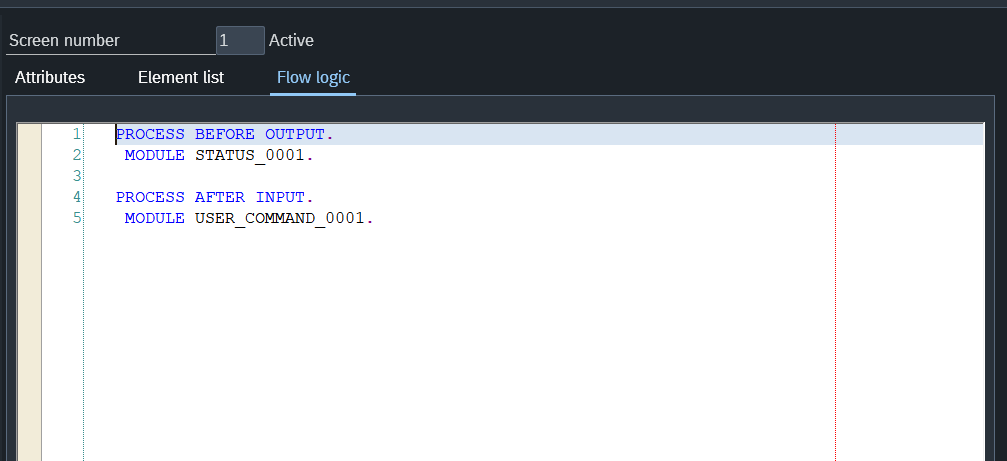 Here if you execute the screen (F8) . it will show the screen, however, the PAI and PBO will not work and nothing will execute.
To probably debug the program you need to execute the program from the module pool code.
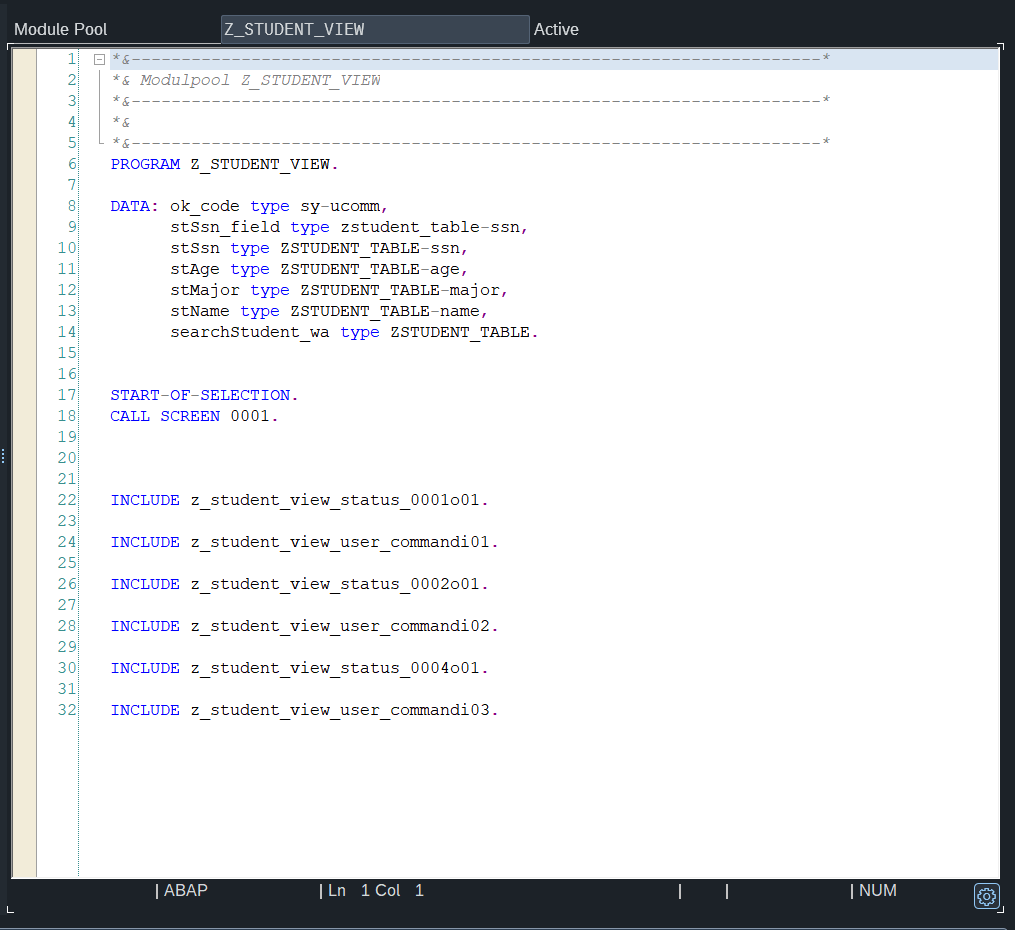
EVEN IF YOU EXECUTE NOTHING WILL HAPPEN. that is because you need to make a transaction for the module pool and insert the following code.
START-OF-SELECTION.
" This will call screen. just use the probable screen number
CALL SCREEN 0001.
Without making these, you might be stuck, without knowing what is wrong exactly.